
To edit your items, simply follow these steps:
|
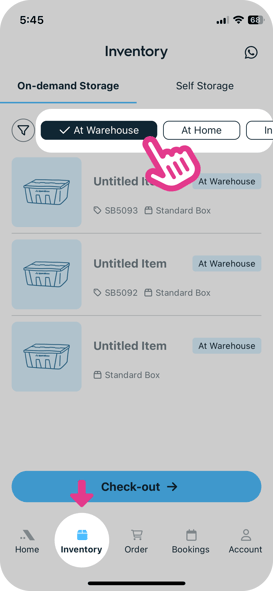
1. In the Inventory, select the section that matches the status of your items. If the items are currently stored at our warehouse, tap "At Warehouse"; if they are currently in your location, tap "At Home" |
 |
|||||
| 2. Tap on the item you wish to edit | 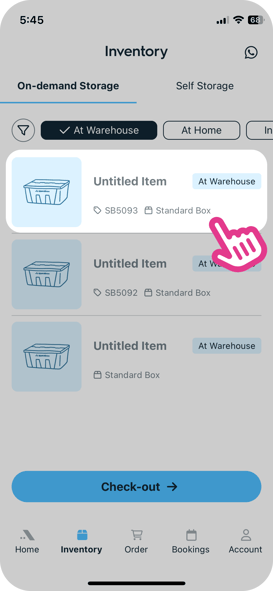 |
|||||
| 3. Tap on the edit icon in the top right corner to start editing. You can also tap "Upload Photos" below to start taking photos of your items and upload them | 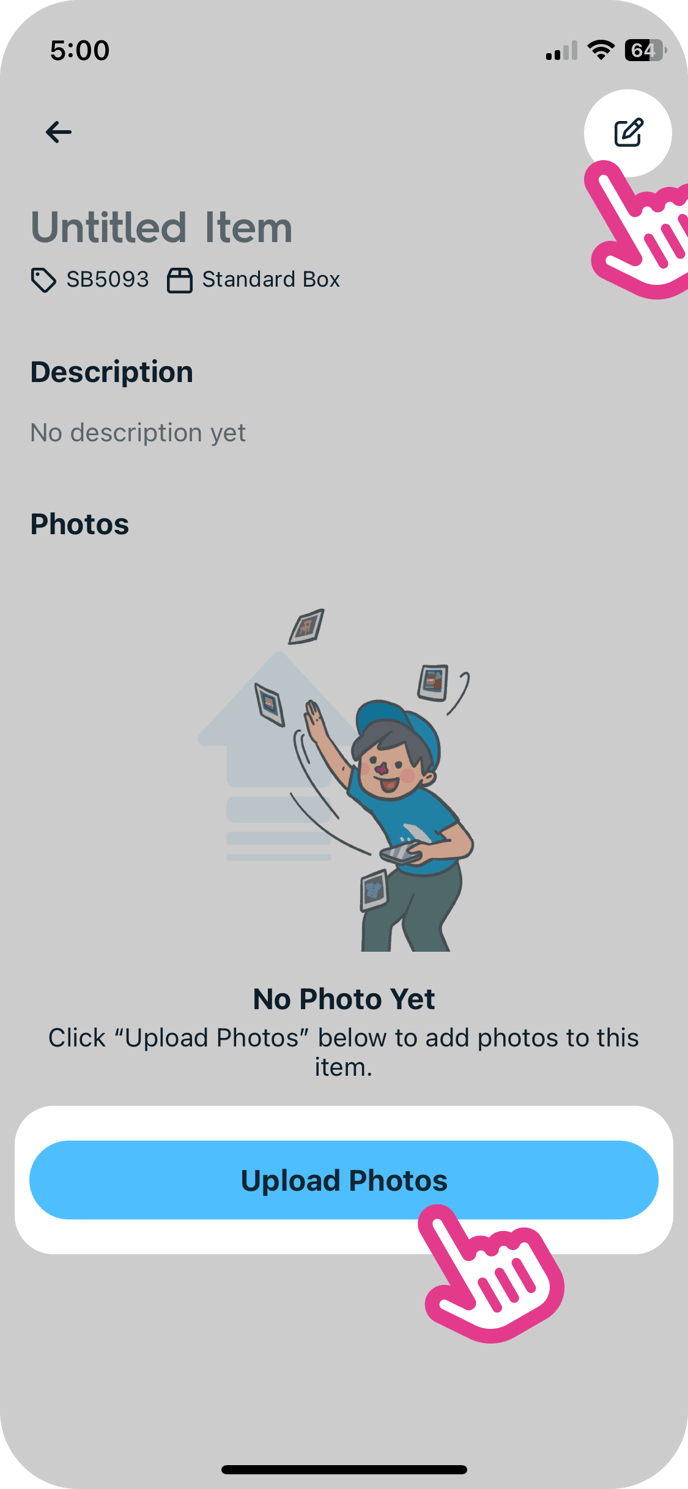 |
|||||
| 4. You can add a title and description to your item to easily identify it. You can also add photos to the item here | 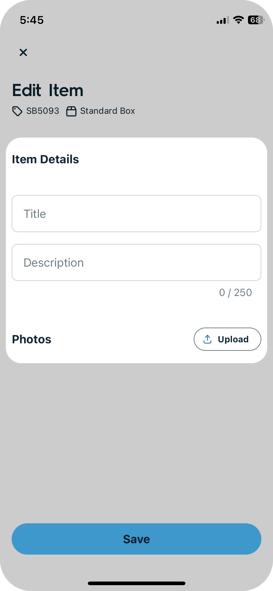 |
|||||
| 5. Tap "Save" when you finish editing | 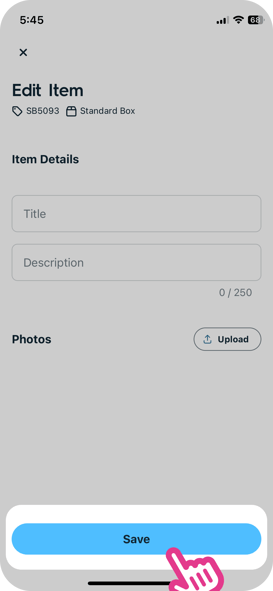 |
|||||
| 6. If you are unable to edit the item, please kindly wait for us to process and you will be able to edit right after | 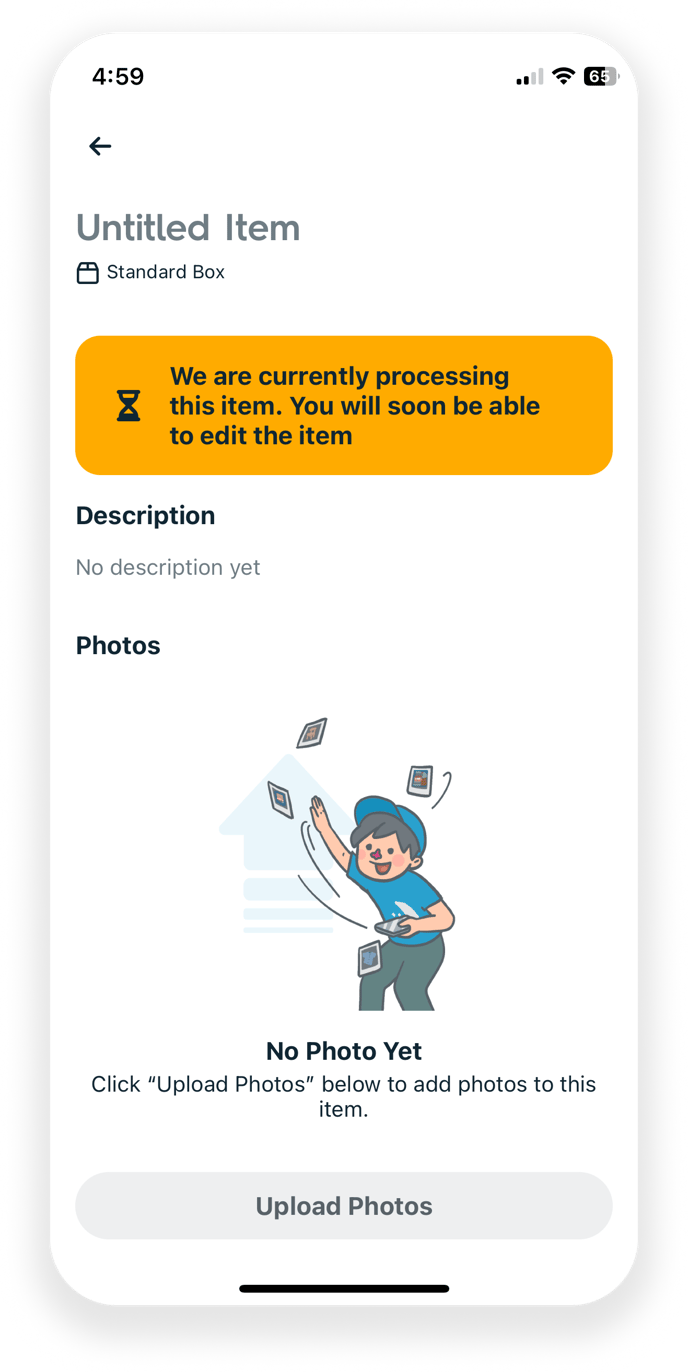 |
|||||